 Chris Chinchilla
ed123799ca
Chris Chinchilla
ed123799ca
## I have read the
[CONTRIBUTING.md](https://github.com/supabase/supabase/blob/master/CONTRIBUTING.md)
file.

YES

<!-- This is an auto-generated comment: release notes by coderabbit.ai
-->
## Summary by CodeRabbit

* **Documentation**
* Clarified API key changes (new publishable/secret scheme, where to
obtain each, legacy keys valid through end of 2026) and updated many
getting-started tutorials with clearer setup, flow, and auth guidance.
* **New Features**
* Added/expanded profile photo/avatar upload and account integration
steps across multiple tutorials.
* **Guides**
  * Added guidance on auth helper methods and when to use them.
* **Examples**
  * Example app updated to use token claims for auth state.
<!-- end of auto-generated comment: release notes by coderabbit.ai -->

---------

Co-authored-by: Katerina Skroumpelou <mandarini@users.noreply.github.com>
Co-authored-by: coderabbitai[bot] <136622811+coderabbitai[bot]@users.noreply.github.com>
Build a User Management App with React
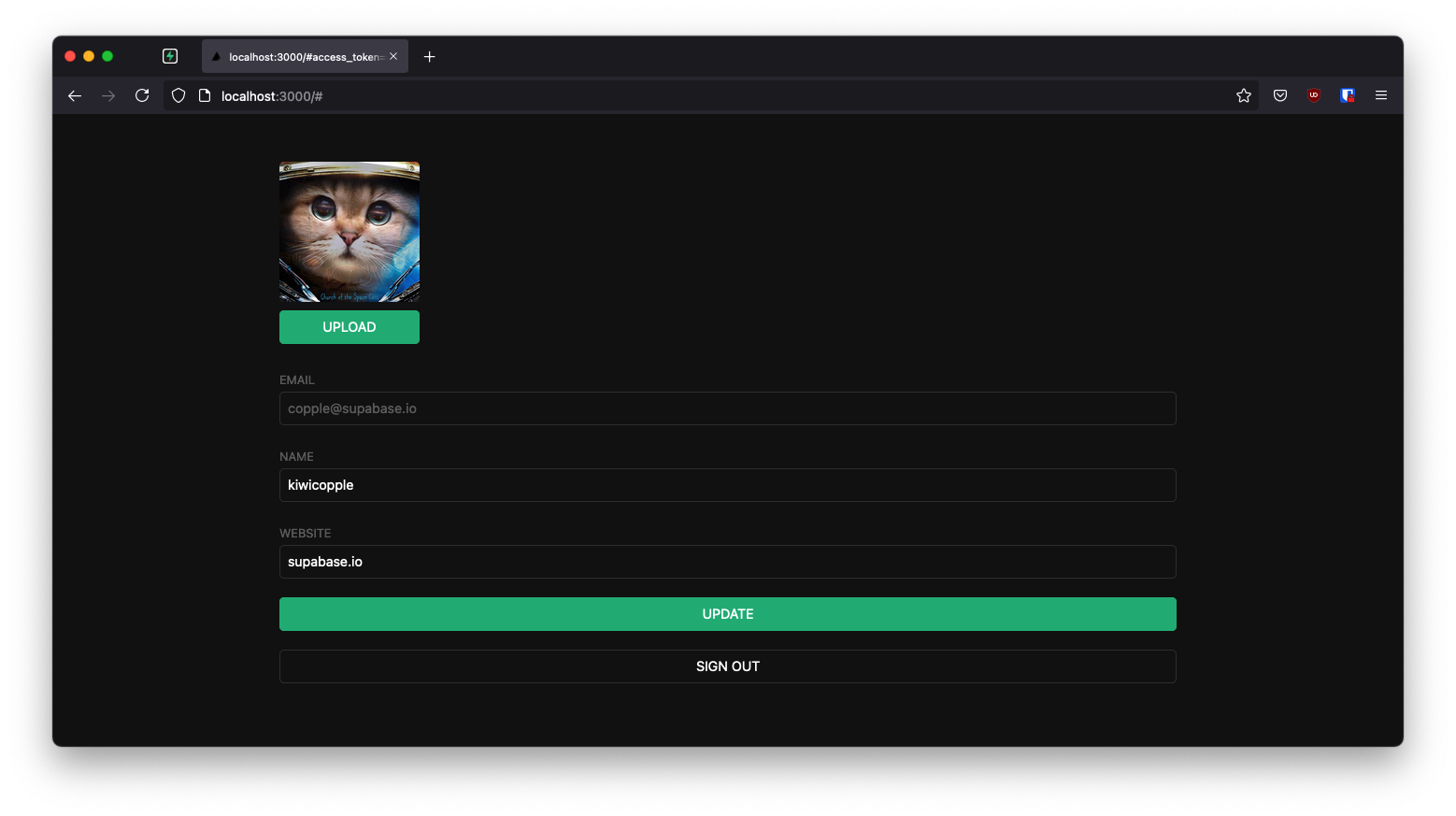
This example demonstrates how to build a user management app with React and Supabase. Users can sign up with a magic link and then update their account with public profile information, including a profile image.
Features
This app demonstrates how to use:
- User signups using Supabase Auth with Magic Links
- User avatar images using Supabase Storage
- Public profiles restricted with Row Level Security
- Frontend using Vite and React
- The
getUser()method to fetch current user details
Technologies Used
- Frontend:
- Vite - Fast React development toolchain
- Supabase.js - For user management and data syncing
- Backend:
- Supabase - Hosted Postgres database with RESTful API
Getting Started
Prerequisites
Before you begin, make sure you have:
- A Supabase account (sign up here)
- Node.js installed on your machine
1. Create a Supabase Project
- Sign in to Supabase Dashboard
- Create a new project
- Wait for your database to start
2. Set Up the Database
Once your database has started:
- Go to the SQL Editor in your project dashboard
- Scroll down to find "User Management Starter" quickstart
- Click it and then click RUN to execute the query
- This will create a
profilestable - verify it in the Table Editor
The quickstart creates the following schema:
-- Create a table for Public Profiles
create table profiles (
  id uuid references auth.users not null,
  updated_at timestamp with time zone,
  username text unique,
  avatar_url text,
  website text,
  primary key (id),
  unique (username),
  constraint username_length check (char_length(username) >= 3)
);

alter table profiles enable row level security;

create policy "Public profiles are viewable by everyone."
  on profiles for select using (true);

create policy "Users can insert their own profile."
  on profiles for insert with check ((select auth.uid()) = id);

create policy "Users can update own profile."
  on profiles for update using ((select auth.uid()) = id);

-- Set up Storage for avatars
insert into storage.buckets (id, name) values ('avatars', 'avatars');

create policy "Avatar images are publicly accessible."
  on storage.objects for select using (bucket_id = 'avatars');

create policy "Anyone can upload an avatar."
  on storage.objects for insert with check (bucket_id = 'avatars');
3. Get Your API Credentials
- Go to Project Settings (the cog icon)
- Open the API tab
- Copy your Project URL and anon/public key
4. Configure Environment Variables
Create a .env.local file in the project root:
VITE_SUPABASE_URL=YOUR_SUPABASE_URL
VITE_SUPABASE_PUBLISHABLE_KEY=YOUR_SUPABASE_PUBLISHABLE_KEY
Replace the values with your actual Project URL and key.
5. Install Dependencies
npm install
6. Run the Application
npm run dev
Open your browser to http://localhost:5173 🚀
Building from Scratch
If you want to build this app from scratch, follow these steps:
Initialize a React App
Use Vite to create a new React app:
npm create vite@latest supabase-react -- --template react
cd supabase-react
Install Supabase
Install the Supabase JavaScript client:
npm install @supabase/supabase-js
Set Up Environment Variables
Create a .env.local file with your Supabase credentials (see step 4 above).
Create the Supabase Client
Create src/supabaseClient.js:
import { createClient } from '@supabase/supabase-js'

const supabaseUrl = import.meta.env.VITE_SUPABASE_URL
const supabasePublishableKey = import.meta.env.VITE_SUPABASE_PUBLISHABLE_KEY

export const supabase = createClient(supabaseUrl, supabasePublishableKey)
This initializes the Supabase client with your project credentials. These variables are exposed in the browser, which is fine because Row Level Security protects your data.
Optional: Add Styling
Update src/index.css to style the app. You can find the full CSS file here.
Application Structure
Authentication Component (src/Auth.jsx)
Handles user login with Magic Links - users can sign in with their email without passwords:
import { useState } from 'react'
import { supabase } from './supabaseClient'

export default function Auth() {
  const [loading, setLoading] = useState(false)
  const [email, setEmail] = useState('')

  const handleLogin = async (event) => {
    event.preventDefault()
    setLoading(true)

    const { error } = await supabase.auth.signInWithOtp({ email })

    if (error) {
      alert(error.error_description || error.message)
    } else {
      alert('Check your email for the login link!')
    }
    setLoading(false)
  }

  return (
    <div className="row flex flex-center">
      <div className="col-6 form-widget">
        <h1 className="header">Supabase + React</h1>
        <p className="description">Sign in via magic link with your email below</p>
        <form className="form-widget" onSubmit={handleLogin}>
          <div>
            <input
              className="inputField"
              type="email"
              placeholder="Your email"
              value={email}
              required={true}
              onChange={(e) => setEmail(e.target.value)}
            />
          </div>
          <div>
            <button className={'button block'} disabled={loading}>
              {loading ? <span>Loading</span> : <span>Send magic link</span>}
            </button>
          </div>
        </form>
      </div>
    </div>
  )
}
Avatar Upload Component (src/Avatar.jsx)
Manages profile photo uploads using Supabase Storage:
- Downloads existing avatar images
- Handles file uploads to the
avatarsbucket - Provides visual feedback during upload
See the full component in src/Avatar.jsx.
Account Management Component (src/Account.jsx)
Allows users to view and edit their profile:
- Fetches user profile data from the
profilestable - Updates profile information (username, website, avatar)
- Displays the current user's email
- Provides sign-out functionality
Key features:
- Uses the
userprop (notsession) passed from the parent component - Implements proper cleanup with the
ignoreflag to prevent race conditions - Updates profile data with
upsertto handle both inserts and updates
See the full component in src/Account.jsx.
Main App Component (src/App.jsx)
The root component that manages authentication state:
import { useState, useEffect } from 'react'
import './App.css'
import { supabase } from './supabaseClient'
import Auth from './Auth'
import Account from './Account'

function App() {
  const [user, setUser] = useState(null)

  useEffect(() => {
    // Get initial user on mount
    supabase.auth.getUser().then(({ data: { user } }) => {
      setUser(user)
    })

    // Listen for auth changes
    supabase.auth.onAuthStateChange(async () => {
      const {
        data: { user },
      } = await supabase.auth.getUser()
      setUser(user)
    })
  }, [])

  return (
    <div className="container" style={{ padding: '50px 0 100px 0' }}>
      {!user ? <Auth /> : <Account key={user.id} user={user} />}
    </div>
  )
}

export default App
Important: This component uses the getUser() method instead of getSession(). The getUser() method:
- Performs a network request to the Supabase Auth server
- Validates the current session on the server side
- Returns the most up-to-date user information
- Is more reliable than reading from local storage
Understanding Row Level Security
This project uses Postgres Row Level Security to provide fine-grained authorization:
- When a user logs in, they receive a JWT with the role
authenticatedand their UUID - These details enable precise control over what each user can access
- The policies ensure:
- All profiles are viewable by everyone
- Users can only insert their own profile
- Users can only update their own profile
- Avatar images are publicly accessible
- Any authenticated user can upload an avatar
This approach keeps your data secure while maintaining a simple client-side implementation.
Project Files
react-user-management/
├── src/
│   ├── App.jsx              # Main app component with auth state
│   ├── Auth.jsx             # Login component with Magic Links
│   ├── Account.jsx          # Profile management component
│   ├── Avatar.jsx           # Avatar upload component
│   ├── supabaseClient.js    # Supabase client initialization
│   ├── App.css              # App styles
│   └── index.css            # Global styles
├── .env.local               # Environment variables (create this)
├── package.json
└── vite.config.js
Learn More
- Supabase Documentation
- Supabase Auth
- Supabase Storage
- Row Level Security
- React Documentation
- Vite Documentation
Troubleshooting
Magic link not working?
- Check your email spam folder
- Verify your site URL is configured correctly in Supabase Dashboard → Authentication → URL Configuration
Images not uploading?
- Ensure the
avatarsbucket exists in Storage - Check that storage policies are correctly set up
Profile not updating?
- Verify the
profilestable exists - Check that Row Level Security policies are active
Authors
Supabase is open source. We'd love for you to follow along and get involved at github.com/supabase/supabase